
Minimal Blue, a VS Code theme. Your editor, minus every distraction.
A keyboard-friendly VS Code extension with a custom dark theme that hides unnecessary UI clutter, so only your code is left.
Everything it changes.
The main changes, applied once on install. Your later edits are never overwritten.
| Setting | Value | Effect |
|---|---|---|
| workbench.statusBar.visible | false | Hides the Status Bar for a minimal look |
| workbench.editor.showTabs | "none" | Hides editor tabs, showing only the active file |
| breadcrumbs.enabled | false | Disables breadcrumbs navigation at the top of the editor |
| window.commandCenter | false | Disables the Command Center in the title bar |
| workbench.sideBar.location | "right" | Moves the Sidebar to the right side of the window |
Two palettes.
149function showWelcomePage(context, preserveFocus = true) {
150  if (welcomePanel) {
151    welcomePanel.reveal(vscode.ViewColumn.One);
152    return;
153  }
154
155  welcomePanel = vscode.window.createWebviewPanel(
156    "minimalBlueWelcome",
157    "Minimal Blue Welcome",
158    { enableScripts: true }
159  );
160  // shown when no editors are open
161}- Editor
- #080810
- Sidebar
- #060609
- Line highlight
- #0F151E
- Accent
- #1E90FF
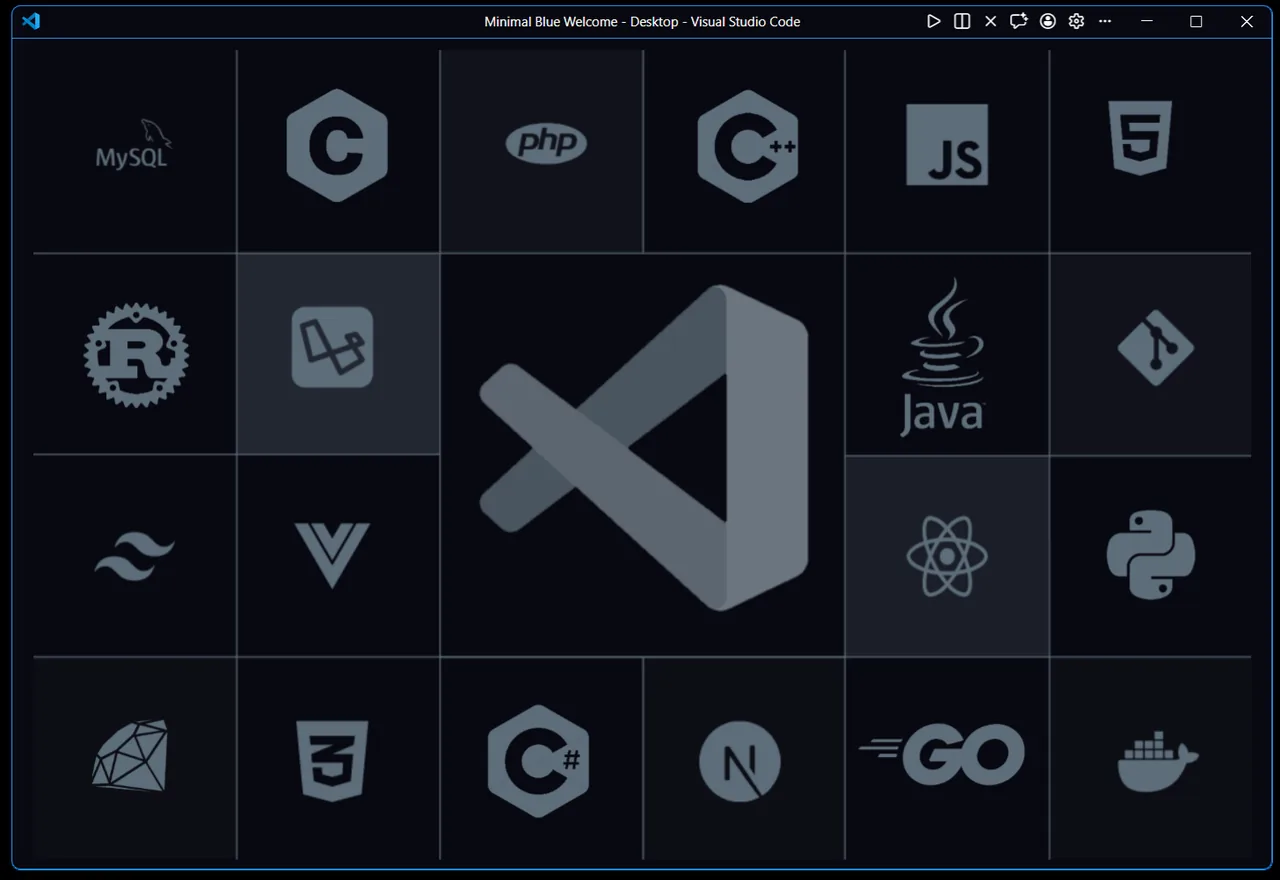
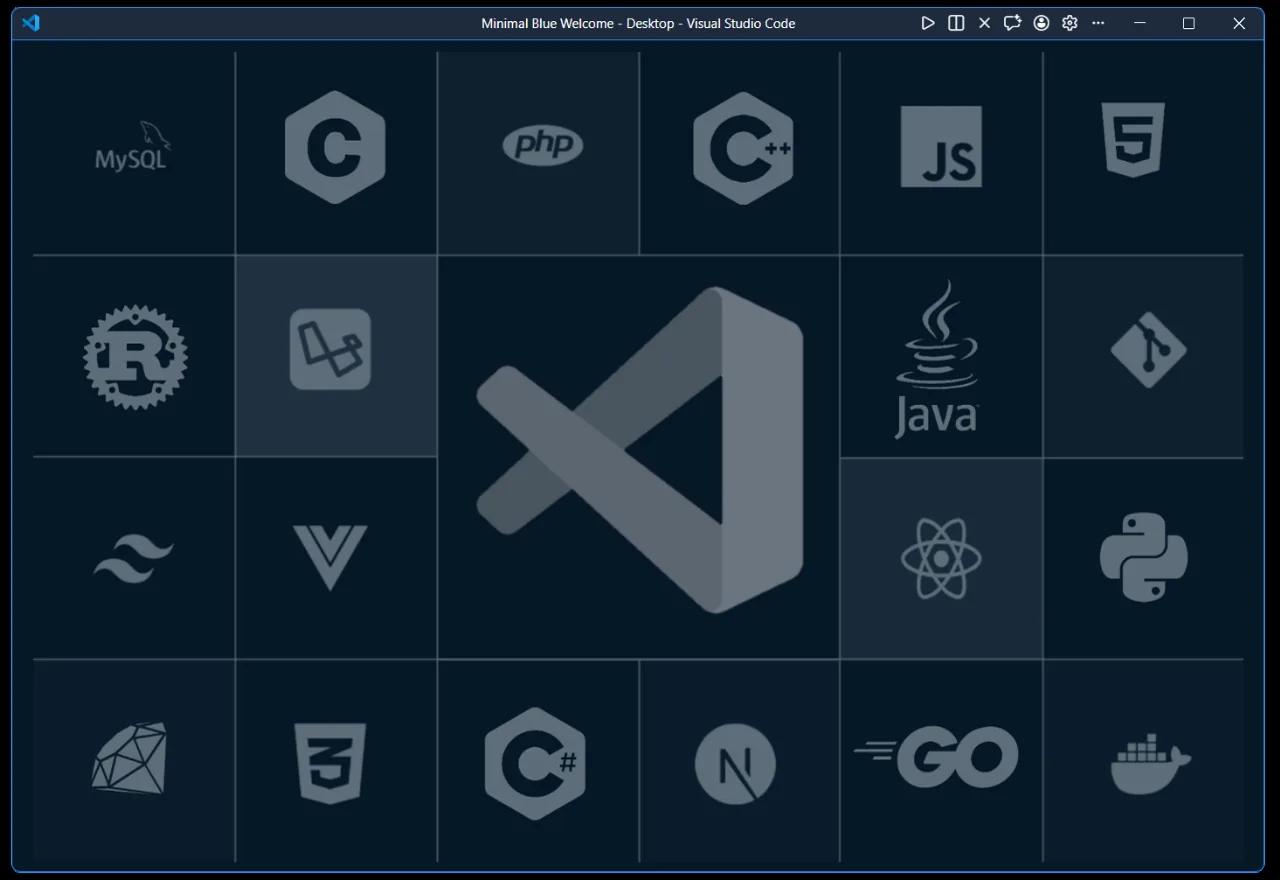
A quiet welcome page.
Shown when no editor is open, in the theme’s own colors.
Install.
Marketplace
Search
Open Marketplace ↗Minimal Bluein Extensions.Command line
The theme replaces the values of the settings it sets. Back up your settings.json first; the FAQ shows how.
FAQ
Does Minimal Blue change my VS Code settings?
Yes, once. On first install, and when you select a Minimal Blue theme, it applies a set of layout and editor settings: hidden status bar, tabs, breadcrumbs and command center, sidebar on the right, activity bar at the bottom. It does not overwrite your changes on later restarts.
How do I back up my settings before installing?
Minimal Blue writes to your user settings.json and replaces the value of any key it sets, so copy that file first. Open the command palette, run Preferences: Open User Settings (JSON), then save a copy of the file somewhere safe. Default locations: Windows %APPDATA%\Code\User\settings.json, macOS ~/Library/Application Support/Code/User/settings.json, Linux ~/.config/Code/User/settings.json. Insiders and VSCodium use a different folder name in the same place.
How do I go back to my original settings?
Close VS Code, replace settings.json with your backup, and reopen it. Uninstalling the extension does not undo the settings it applied, so restoring the backup is the way back. Without a backup, you can delete individual keys from settings.json, or change them one by one; the Settings section above lists the main ones. Then pick any other color theme from the command palette (Preferences: Color Theme).
How do I get the status bar or tabs back?
Change the setting in VS Code as usual, for example workbench.statusBar.visible or workbench.editor.showTabs. Minimal Blue will leave it alone. To reapply the defaults, run Minimal Blue: Force Apply Settings from the command palette.
What is the difference between Super Dark and Classic?
Same syntax colors and accent. Super Dark uses a near-black editor background (#080810). Classic uses a deep navy (#051726). Super Dark is the default.
Which VS Code versions are supported?
VS Code 1.75 or newer.
Does it include the JetBrains Mono font?
No. The extension sets the editor font to JetBrains Mono, so install the font on your system to see it. Without it, VS Code falls back to its default.
Is it free?
Yes. Minimal Blue is open source under the MIT license.